Open the console here or on your phone, and get told when you are needed.
After this page, a browser on this machine and your phone show the same Session list, you know which devices may send, and your phone gets a notification when a Session waits for you.
Checked against the product on 30 August 2026
Latest release: Clawdline v2.9.0 · platform support
Use a browser on this machine
clawdline open           # opens a signed-in browser
clawdline open --print   # prints the sign-in address instead
Each run creates a device for that browser, which may read and send. The key is in the address after #, which a browser never sends to a server; treat a printed address like a password until it has been used. --send is still accepted and changes nothing.
Expected result: the console at http://127.0.0.1:7727 shows this machine's Sessions. The daemon listens only on 127.0.0.1, so nothing else on your network can connect.
Use Cloud in another browser or on your phone
Follow Connect Clawdline Cloud in order: sign in, connect the computer, then pair each browser or phone where you will keep using it.
- A new browser on this computer: at app.clawdline.com, choose Pair a machine → Show the pairing code → Open Clawdline to pair, confirm in the app, then compare fingerprints in the browser. See same-computer pairing.
- iPhone or iPad: first add app.clawdline.com to the Home Screen from Safari, open it from there and sign in, then scan the computer's QR inside it. See the iPhone steps.
- Android: open app.clawdline.com in Chrome; install it first if you want the app. Sign in where you will keep using it, then choose Pair a machine → Scan the machine's QR. See the Android steps.
Expected result: after you compare fingerprints, the browser or phone shows the machine's Sessions. If it does not, see If pairing does not finish.
Without Cloud, use SSH or Tailscale Serve.
Read and send
Reading shows Sessions, transcripts, and screens. Sending also types into Sessions, answers, starts, stops, and closes them, and opens terminals.
| Device | Reads | Sends |
|---|---|---|
| Signed in directly to this machine | Yes | With a local read-and-operate grant |
| A device with a read-only grant | Yes | No |
| Paired through Clawdline Cloud | Yes | Only when the machine's Cloud command switch and this browser's local operation grant both allow it |
Notifications
Complete the iPhone/iPad or Android steps first. Keep using the same app. Enable notifications once on each device that should receive them.
- Open Settings → Notifications.
- Turn on This device and allow notifications.
- Press Send a test.
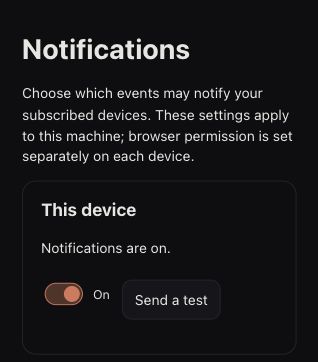
Expected result: a test notification appears in the banner or Notification Center. A sent message alone does not confirm delivery. If none arrives, check notification permission and the app you paired. To stop notifications, turn off This device here.
| You are notified when | Limit |
|---|---|
| A Session has waited 10 minutes on a question or permission prompt | Once per wait, at most 6 an hour |
An agent runs clawdline notify --title … --body … | Title up to 80 characters, body up to 500 |
| A schedule's run fails, with Tell me if it fails on | — |
Answer from your phone
- A Session's question: tap an option on the card above the message box, as in Answer and send.
- A Board decision: open the item's Needs your decision card and tap an answer. The card shows when your answer is sent and when it was received. See Board.
Through Cloud, both require the machine's Cloud command switch and this browser's local operation grant. To start Sessions on a clock, see Schedules; to hand work to another Session, see Dispatch.
Session states
What each row's state means is in Sessions and states.