Choose a work folder and start your first Session.
The Clawdline console helps you register an existing work folder and select an AI tool. It opens your new Session after it starts.
Checked against the product on 30 August 2026
Latest release: Clawdline v2.9.0 · platform support
Start in the console
The screenshots below are the console from the v1.0.0 release, with a sample folder named demo-app. The Mac app shows the same console inside its window; a browser shows it at 127.0.0.1:7727. The console follows your system language; these are the English labels.
- Open the empty list. A new install shows No Sessions yet. Choose Start your first Session.
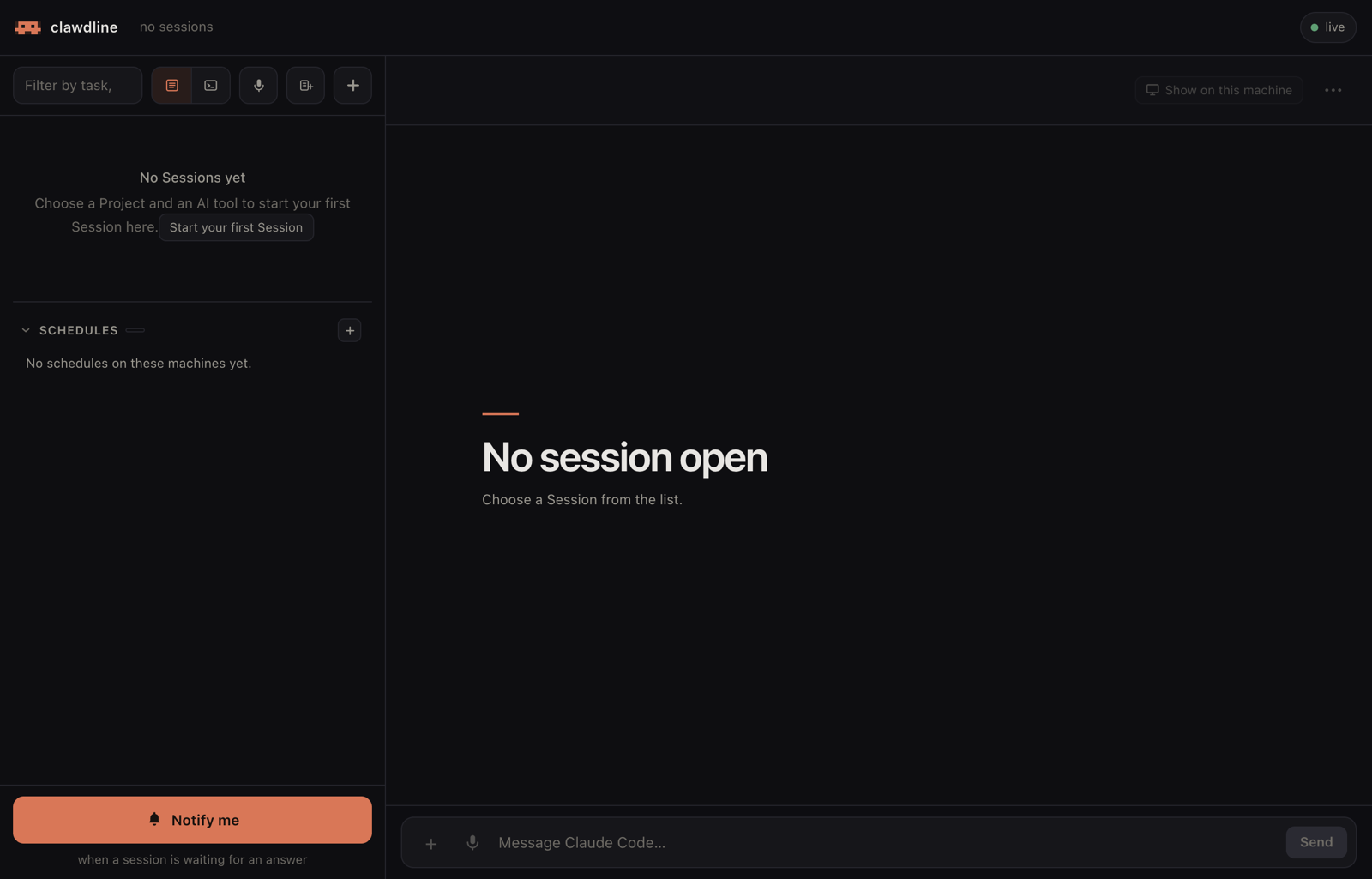
An empty list. Start your first Session opens the Start a session dialog. - Add the folder you work in. In Start a session, press + (Add Project). Open folders until the path shows your project, or type its path and choose Open. Then choose Add this project. Pick a folder that already exists; to use a new one, create it on this machine first. Cancel registers nothing.
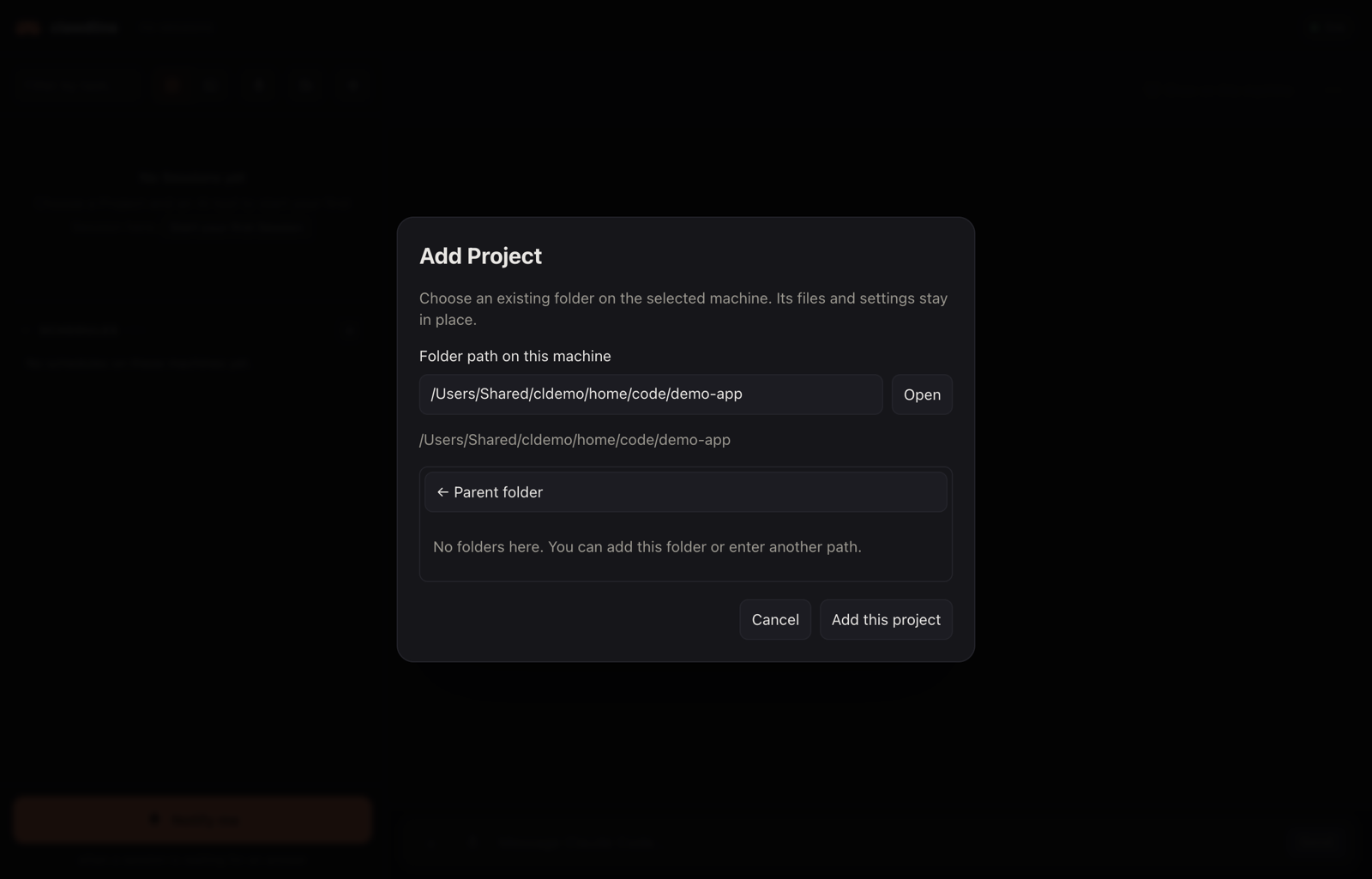
Add Project lists the folders on this machine. Adding a folder leaves its files and settings where they are. - Choose the AI tool and the Project. Under Start with, choose Claude Code or Codex. Leave the role at No role for now, then press the Project's row. The new Session opens.
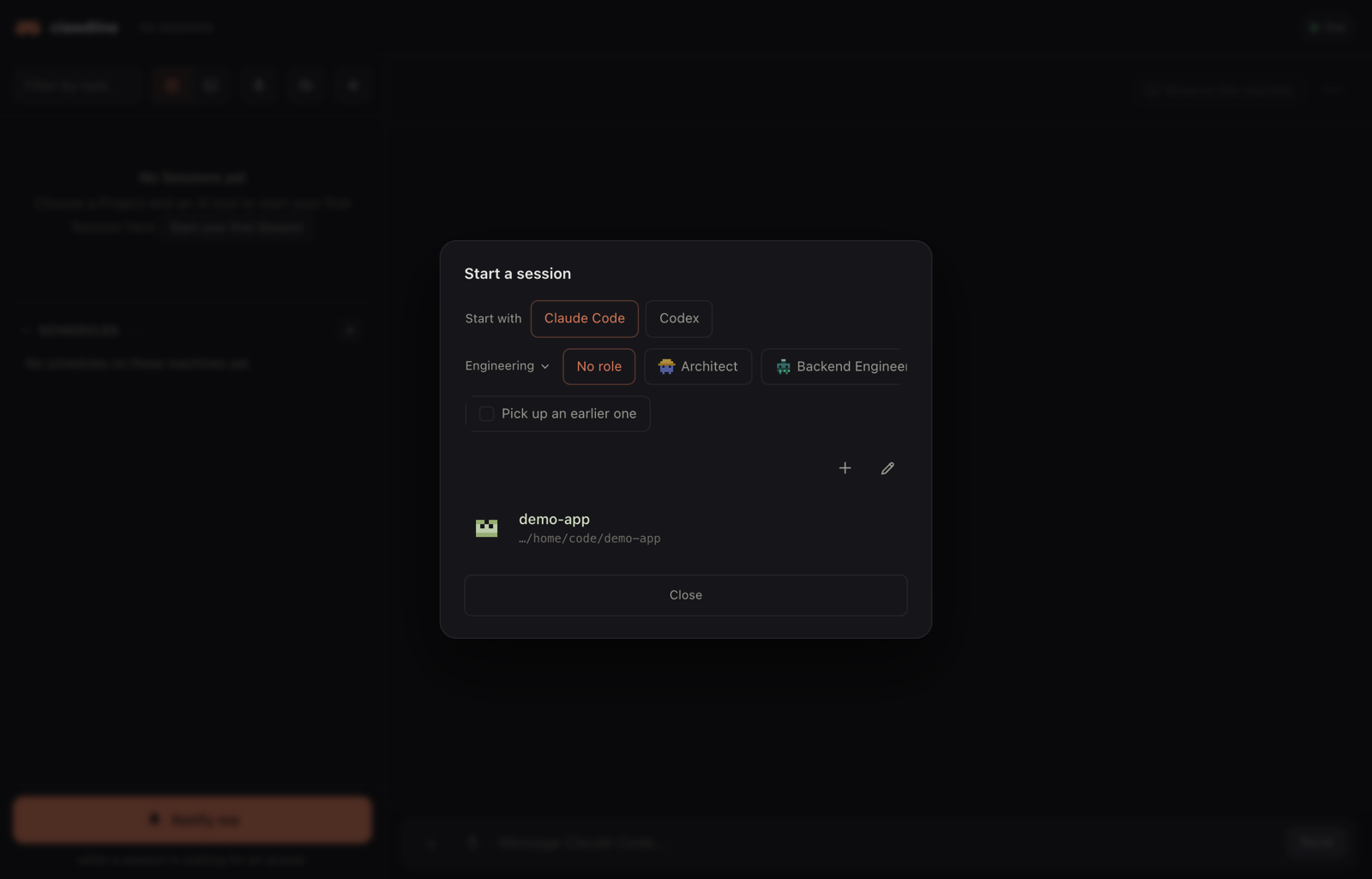
The Project you added is now a row. Pressing it starts the selected AI tool in that folder. - Check the target and send a test message. The top of the page names the Project and the AI tool, and the list shows the same Session. Type
Reply with the word connected.in the message box and choose Send.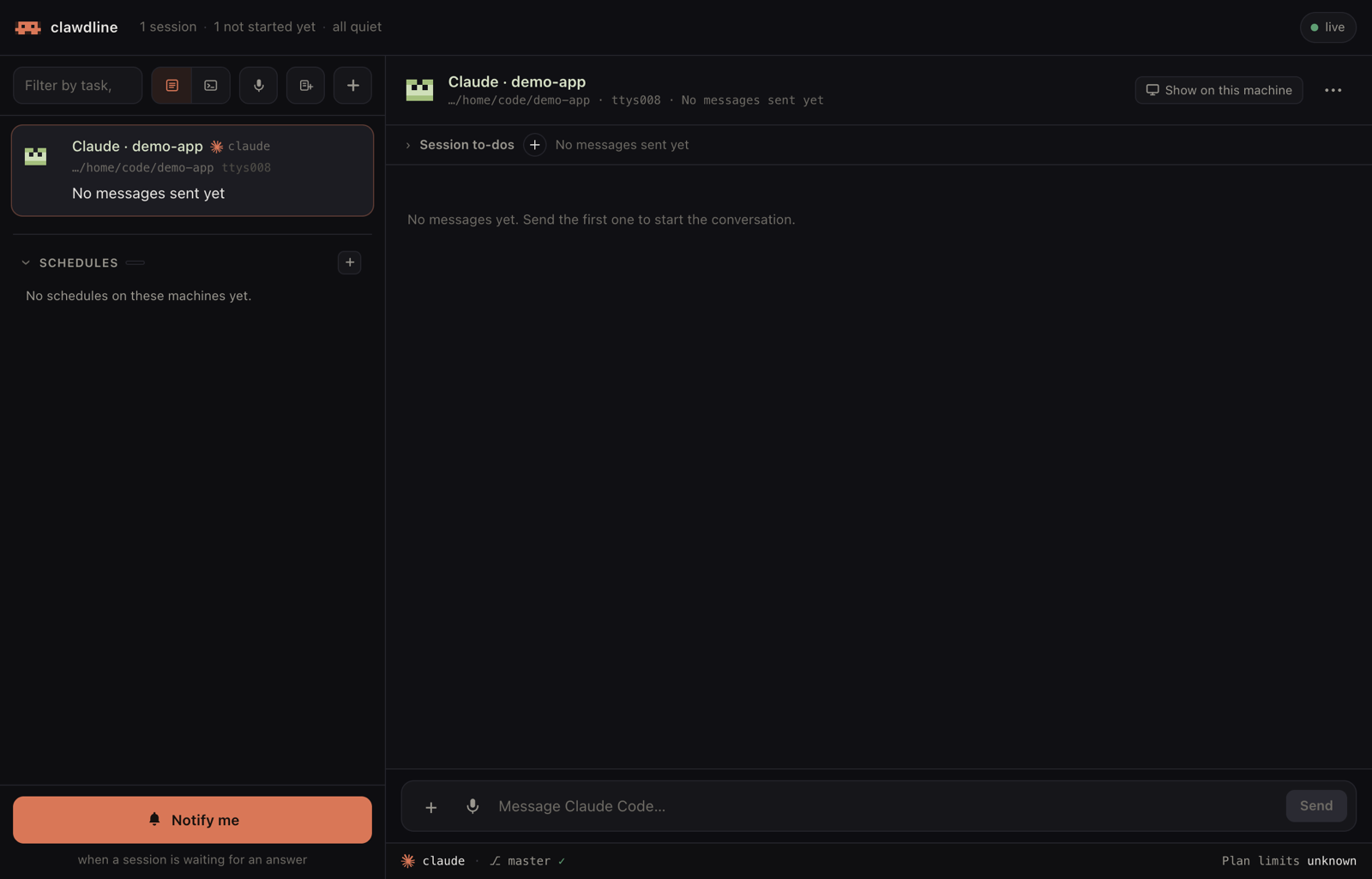
A started Session before its first message. What you send goes to this Session only. - Read the answer. Your message and the reply
connectedappear in the Session's transcript. Claude Code may rename the Session after its first answer; here it became Connected.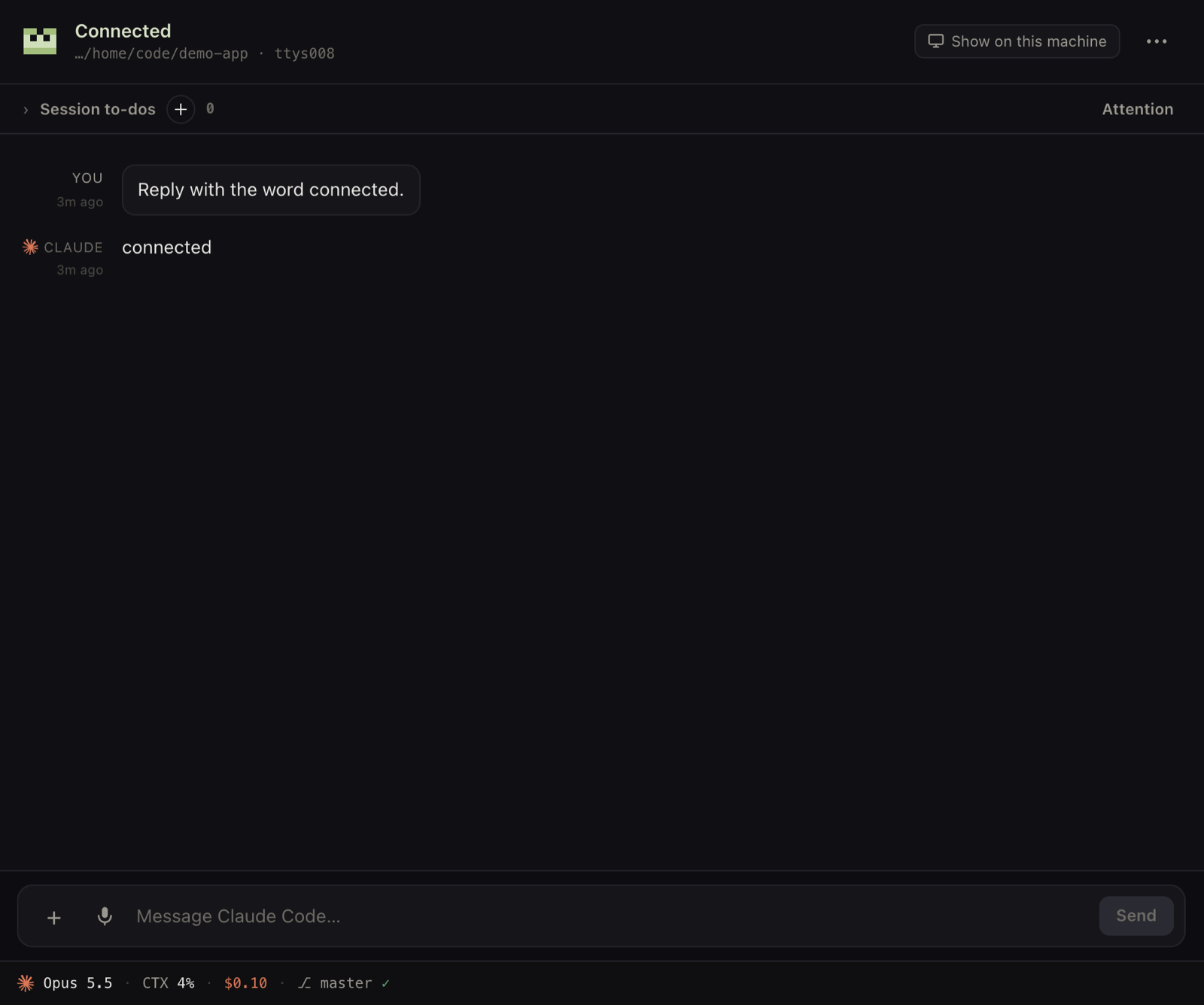
The round trip worked: the console sent your message to this Session and shows its reply.
If the dialog says Install or sign in to Claude Code or Codex on this machine, then retry., the AI tool is installed but not signed in. Sign in to it on this machine, then choose Check AI tools again. On an Apple silicon Mac the Mac app can open its setup for you.
Start on Linux or in a terminal
Linux desktops, headless machines, and Intel Macs can use the browser console's folder browser to register an existing Project. To start an AI tool directly in a terminal, sign in to it first, then run:
clawdline tmux new -s work
cd /path/to/your/project
codex  # or claude
On a Mac you can use an iTerm2 tab instead of tmux. A shell with no AI tool running in it is not a row in the list. To work in a plain shell from the console or your phone, switch to 終端 (Terminals) and choose 開一個終端 (Open a terminal); that works before any AI tool is installed (Terminals).
Expected result
- A Session started from the Mac app opens directly. A Session started in a terminal appears in the list within a few seconds.
- After you send the example message, it appears in the Session's transcript, and a moment later the reply
connectedappears below it. - No row after starting in a terminal? Check that the assistant runs inside tmux (or iTerm2 on a Mac); see Troubleshooting.
- The message box does not let you send? This browser is signed in as a device that may only read. Open the console again with
clawdline openon this machine. If it still cannot send, see Troubleshooting.
Stop or undo
To end the test, close the Session from the console (Stop and close), or quit the AI tool in its terminal as usual. Closing a Session does not delete the work folder you chose.
Next
- Sessions and states: read every row, answer questions, start and close Sessions.
- Terminals: use another terminal app, or open a terminal in the console.
- Browser, phone, and notifications: reach the console from your phone.