Reach your machine from a phone through Clawdline Cloud.
After this page, a phone or browser at app.clawdline.com shows this machine's Sessions, and you decide whether it may only read or may also act.
Checked against the product on 30 August 2026
Latest release: Clawdline v2.9.0 · platform support
Using Cloud with a keyboard? Keep the keyboard shortcuts cheat sheet nearby.
Before you start
Keep Clawdline running on the computer. Use the same GitHub account on every device. Sign in, connect the machine, then pair your browser or phone.
Sign in and connect the machine
Open Clawdline on the computer and select its Cloud tab. Skip any step it no longer shows.
- Choose Continue with GitHub, sign in in your default browser, and allow it to open Clawdline.
- Choose Connect this machine, approve the native confirmation, approve the machine in your default browser with the same account, and return to Clawdline.
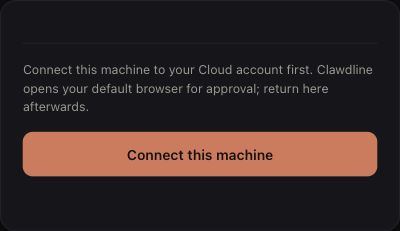
UI example · Tap to enlarge - Choose Pair this app, then Pair directly with this app's machine. Approve, compare fingerprints, and choose They match — done.
Expected result: this computer's Sessions appear in the Cloud tab.
Without the app: a terminal or SSH
On the machine you want to reach:
clawdline cloud login
clawdline cloud on
clawdline cloud status
Open the address cloud login prints, sign in with the same GitHub account, and approve the machine within ten minutes. cloud on connects the running daemon without a restart; cloud status shows the connection. If the shell cannot find clawdline, open a new terminal or use ~/.local/bin/clawdline.
Pair a browser or phone
Pair in the browser profile or installed app you will keep using. Each one, including Safari and the phone's Home Screen app, keeps its own keys.
In the Mac app, open Local browser → Settings → Remote to show a QR or paste a pairing code. The Cloud tab offers the same controls. In an ordinary browser, Settings → Remote offers Open Clawdline setup guide and Copy pairing command; run the copied command on the target machine. Cloud also offers Pair this browser to select a machine.
A new browser on the same computer
- Open app.clawdline.com in that browser and sign in.
- Open Pair a machine and choose Show the pairing code. No machine needs to be selected first.
- Choose Open Clawdline to pair, allow the browser to open the app, check the machine it names, and choose Pair with this machine.
- Return to the same browser page, compare fingerprints, and choose They match — done.
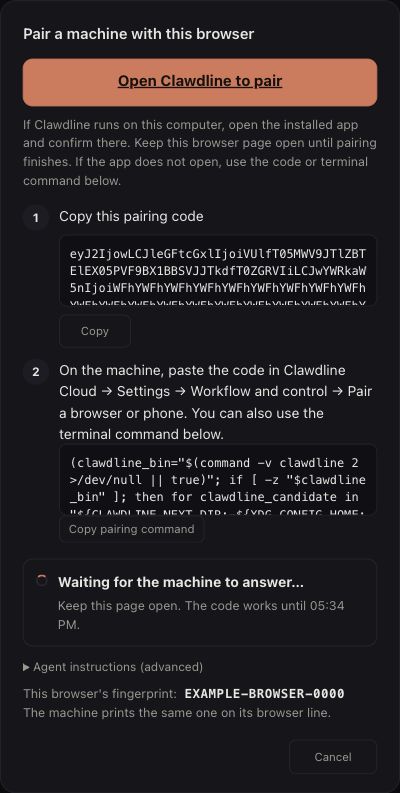
Expected result: the app says Browser paired, and the browser shows the machine's Sessions.
Phone: install first, then pair
iPhone / iPad
-
Safari: app.clawdline.com → Share → Add to Home Screen
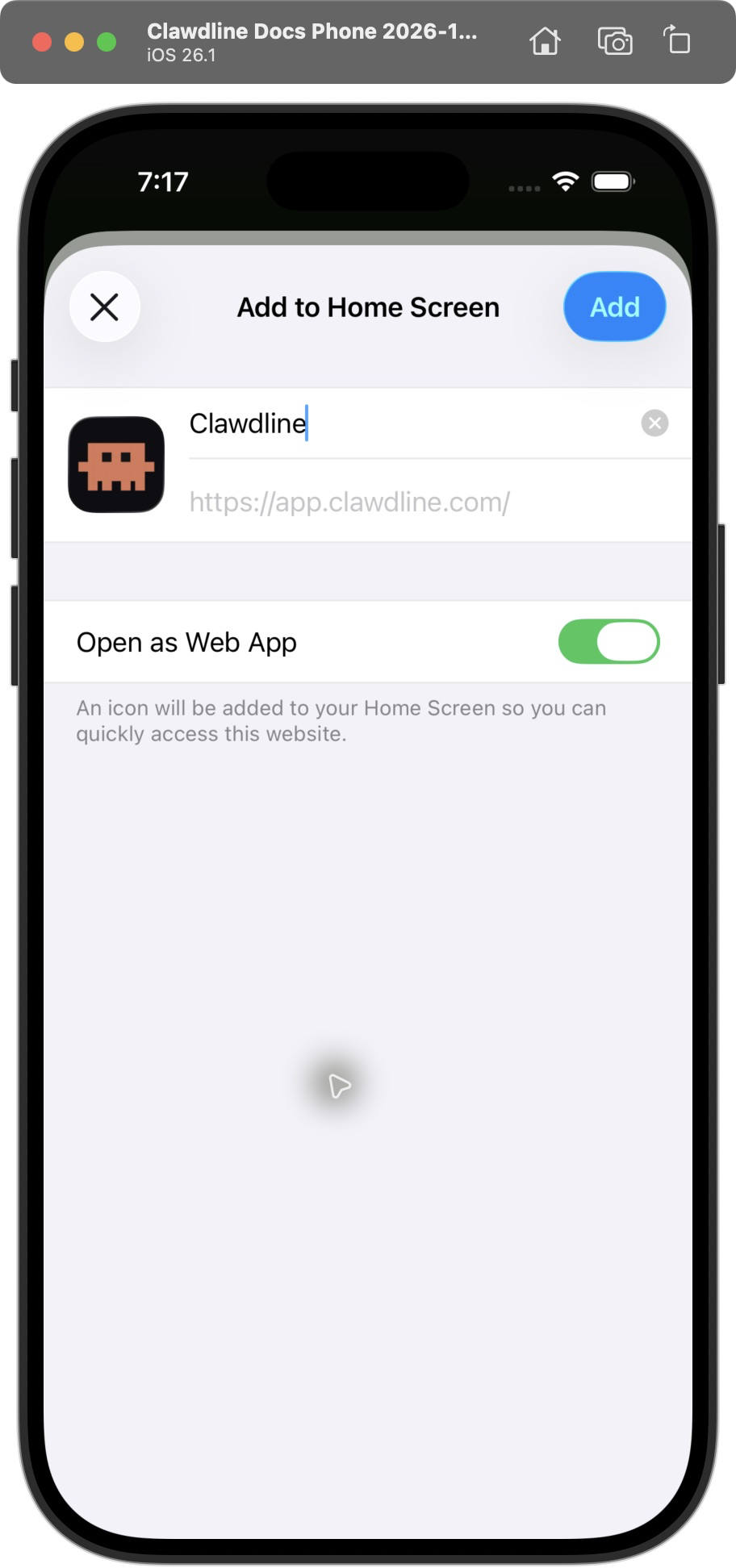
-
Show the QR code in the Mac app
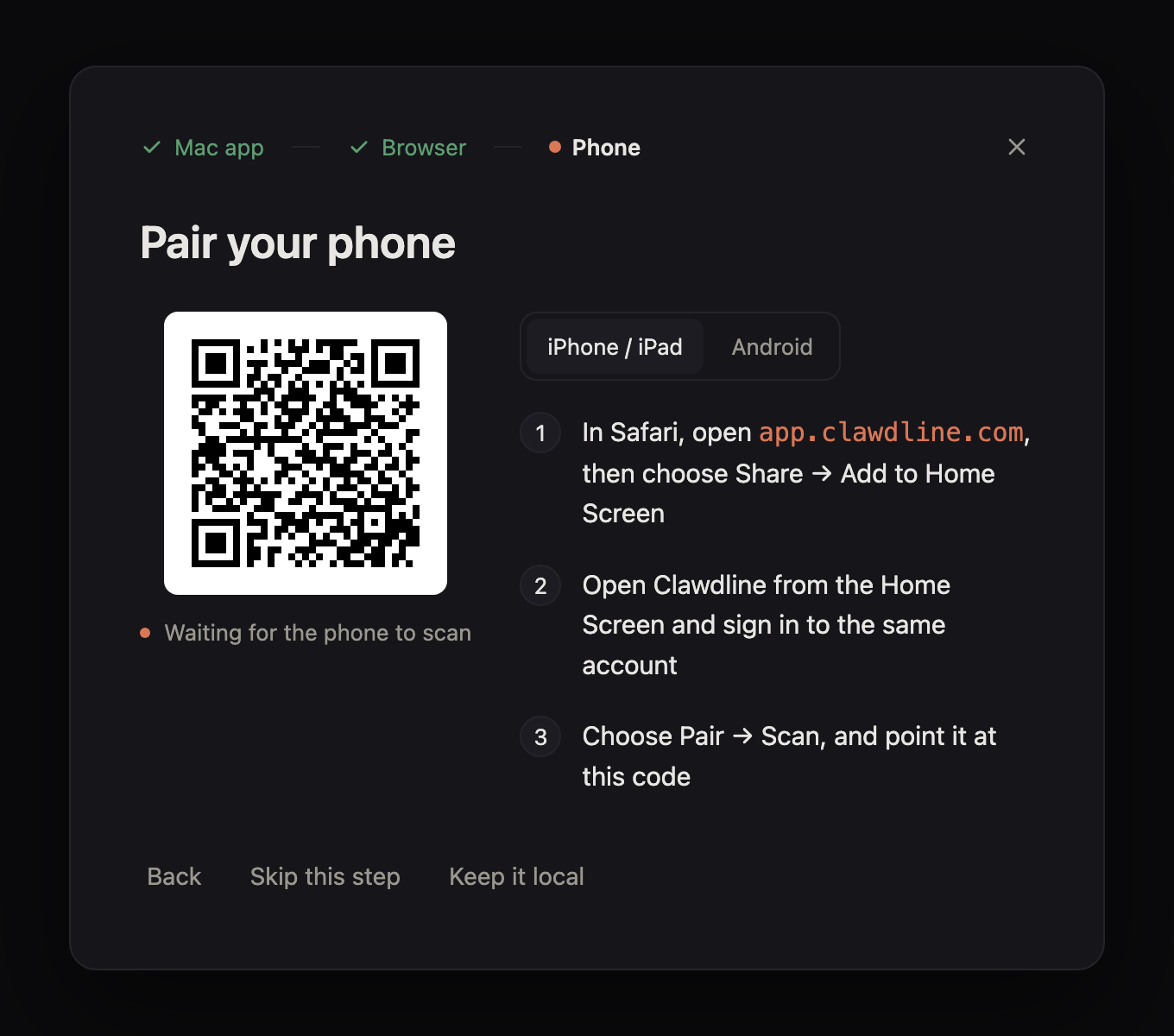
Setup guide example. Scan the QR shown on your own Mac. -
Scan inside the phone app
Android
-
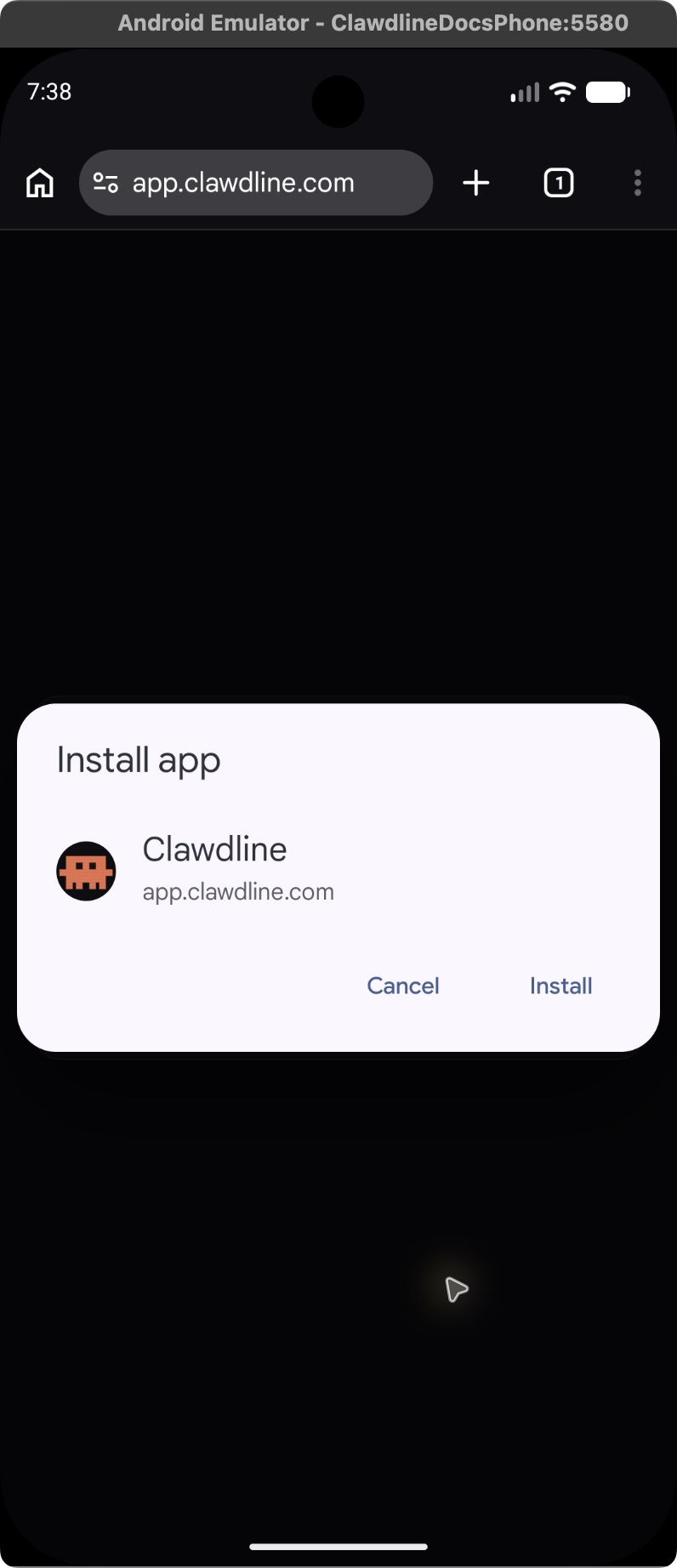
Chrome: app.clawdline.com → ⋮ → Add to Home screen
-
Show the QR code in the Mac app
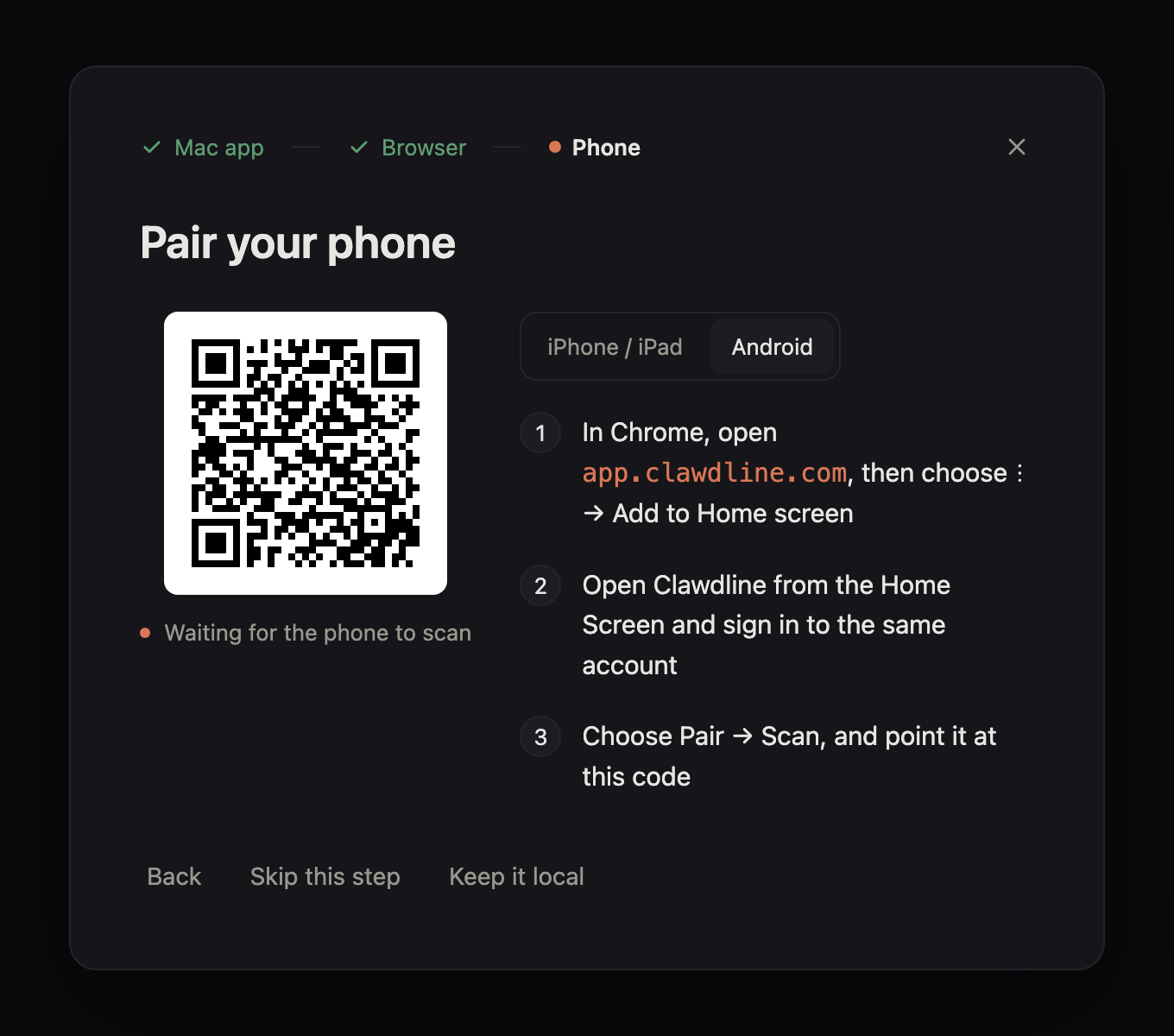
Setup guide example. Scan the QR shown on your own Mac. -
Scan inside the phone app
If pairing does not finish
- The app does not open, or a button is missing: update Clawdline, open it once, and try again, or use a fallback below.
- Camera denied or black: allow the camera for that browser or app, or choose Black screen? Choose a photo of the QR or Choose a QR image. The image is read on the phone.
- Code expired: choose Get a new QR code on the computer, or New code in the browser.
- Still asked to pair: check the GitHub account, the selected machine, and that you are in the profile or Home Screen app you paired. Clearing site data removes its keys.
Use a pairing code or terminal instead
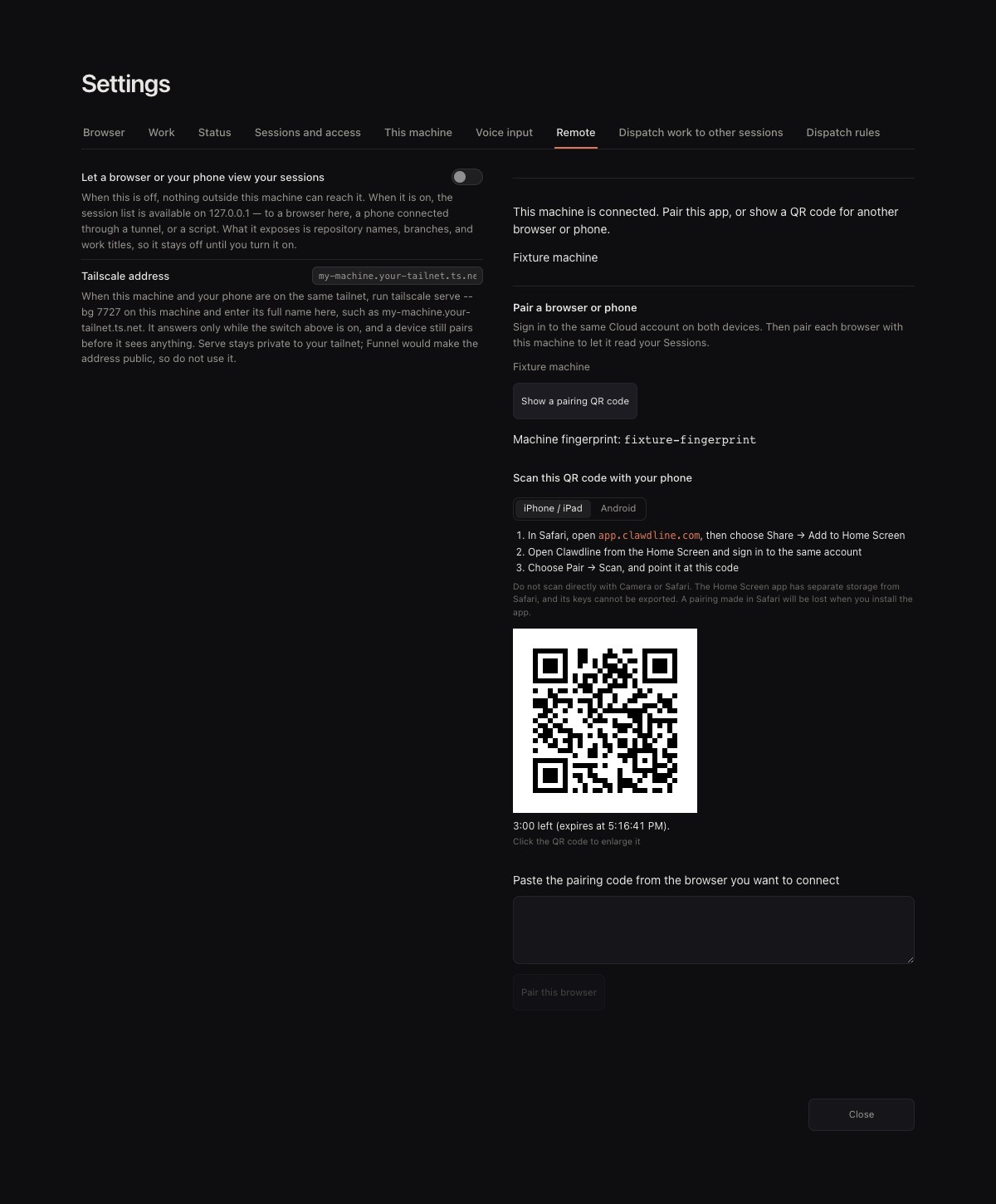
Code fallback: in the browser or phone, choose Show the pairing code (or Can't scan? Use a pairing code instead; after a camera error, Use a pairing code) and copy the whole code. On the computer, open the app's Local browser tab → Settings → Remote → Pair a browser or phone, paste it into Paste the pairing code from the browser you want to connect, choose Pair this browser, and approve.
Terminal fallback: choose Copy pairing command on the browser's pairing card and run the whole command once on the target machine. It runs clawdline cloud pair --offer and finds an installed Clawdline even when it is not on PATH. If it says Clawdline was not found, install and start Clawdline there and generate a new code.
Either way, keep the browser page open, then compare fingerprints there to finish. If they differ, remove that pairing (See and remove devices).
Let a paired browser act
A paired browser can read. Sending text, answering, or starting and closing Sessions also requires both the machine's Cloud command switch and that browser's local operation grant. On the machine, clawdline cloud commands on enables Cloud commands; clawdline cloud commands off stops them on the next request. Choose each browser's grant with clawdline cloud grant <device-id> readonly or operate.
Assistants can run shell commands, so operation permission lets a browser ask an assistant to run code on this machine. A remote browser cannot raise its own local grant.
See and remove devices
Run these commands on the machine to inspect and remove Cloud browsers:
| Command | What it does |
|---|---|
clawdline cloud devices | Lists each browser with its id and fingerprint. paired here is a browser this machine paired; account only is a browser on your account that was paired with another of your machines, which this machine also admits. |
clawdline cloud revoke <device-id> | The machine refuses that browser's next message. |
clawdline cloud rotate | Replaces the machine's signing key after a confirmation. Every browser must pair again. |
clawdline cloud off | Turns the line off at once, local Sessions keep working. |
To use several machines, repeat the same connection and pairing steps on each machine. Pairing and the operation switch are independent for each machine.
Remove a machine from your account
Uninstalling Clawdline stops a machine's connection but leaves it on your account. To remove it, open app.clawdline.com, open the machine list at the top, and choose Remove from account on its row. clawdline setup --uninstall reminds you when the machine was signed in to Cloud.
Connect a phone directly to AWS Linux
A paired phone can use a direct WebRTC data channel for Terminal and Session reads when ICE succeeds. Cloud still carries connection signalling and other commands; if ICE cannot connect, the end-to-end encrypted relay carries those reads. Fixed-port ICE is available in development builds. On an EC2 Linux machine:
- Identify the instance's actual AWS account, Region, public IPv4, security group, subnet network ACL and route table. The subnet needs an Internet Gateway route. A private IPv4 alone cannot receive the phone's mobile-data packets. An EC2 public IPv4 can change after stop/start.
- Merge the following keys into the Clawdline service user's existing
~/.config/clawdline-next/config.json, retaining all other settings. ReplacePUBLIC_IPV4with the current address; the port and public IP must be set together.
{
  "cloud_terminal_direct": true,
  "cloud_direct_udp_port": 3479,
  "cloud_direct_public_ip": "PUBLIC_IPV4"
}- In the attached security group, allow inbound UDP
3479from the phone's known public IP, or0.0.0.0/0if it changes. Allow outbound UDP to the phone's dynamic ICE port;1024-65535covers an unknown destination port. Check custom network ACL and host firewall rules in both directions. The direct path does not need inbound HTTP 7727, SSH or a NAT Gateway. - Run
clawdline cloud direct onas the service user and confirmclawdline cloud statussaysdirect true. After a browser offer,ss -lunpshould show Clawdline on UDP 3479. On the paired phone using mobile data, open this machine's Terminal and type a harmless command. In the daemon log, aninputreceipt withoutcome=ok_directproves the input used the direct carrier; a working screen alone may be using the relay.
Keep an existing broad inbound UDP rule only while proving the fixed port, then remove it by its
security-group rule ID and test the phone again. clawdline cloud direct off pauses direct
use for development while the relay stays available. A security-group rule and Internet Gateway
have no separate hourly charge; the public IPv4 and Internet data transfer retain their usual AWS
charges. See the full EC2 procedure for CLI rule examples and troubleshooting.
Plans
- Free includes one Cloud-connected machine and five viewer devices. Cloud needs sign-in and pairing; local work without Cloud needs no account.
- Pro costs $10 a month. It allows up to five connected machines, keeps the same five viewer devices, and adds schedule webhooks. On the hosted console's Plan page, choose Upgrade to Pro — $10 / month. Billing is monthly through Lemon Squeezy; Manage subscription changes or cancels it.
The Plan page lists your plan's current limits; they may still change.
Where to go deeper
- Encryption — what Cloud can see, and what it never holds.
- Remote access — the product repository's guide, including SSH and Tailscale Serve without Cloud.